How to Add Learner Notes – Sys Admin, Admins, Tutors and Moderators
This guide has been written to assist System Admins, Admins, Tutors and Moderators on how to add notes to a learners account.
 NB: Any notes added to a learners account can be
seen by Sys Admins, Admins, Tutors and Moderators also if the ILP
checkbox is ticked then the Learner can also see any notes on their
account.
NB: Any notes added to a learners account can be
seen by Sys Admins, Admins, Tutors and Moderators also if the ILP
checkbox is ticked then the Learner can also see any notes on their
account.1. Next login using your email address and password, if you have forgotten your password then click on the Forgotten Password link.
2. Once
you have logged into eAssessor Pro you will then be shown your dashboard.
3. Next go to Learner Search
4. From the list of learners shown select a learner. This will then show the learner’s Overview page.
5. Next
click on the Actions button located on the right hand side of the page.
6. Next click on the Actions button and a menu will be displayed, from the menu options shown chose the Learner Notes.
7. Next
click inside the text box and enter the notes you want to add, next click on
the Note Category and select the category that the note refers too, once done,
click on the Add button to add the note.
8. Once the note has been added the entry will be shown.
9. If you need to edit the notes entry, then this can be done by clicking on the Edit link in the notes field.
10. 10.When the Edit link is clicked a pop-up message will be displayed. Make any changes that are needed, this can be done by clicking in the Note’s text box and also changing the Note Category if needed, once all amends have been made then click on the Save button.
11. 11. Once the Save button has been clicked the note will be updated.
12. 12. To
delete a Note, click on the Delete link.
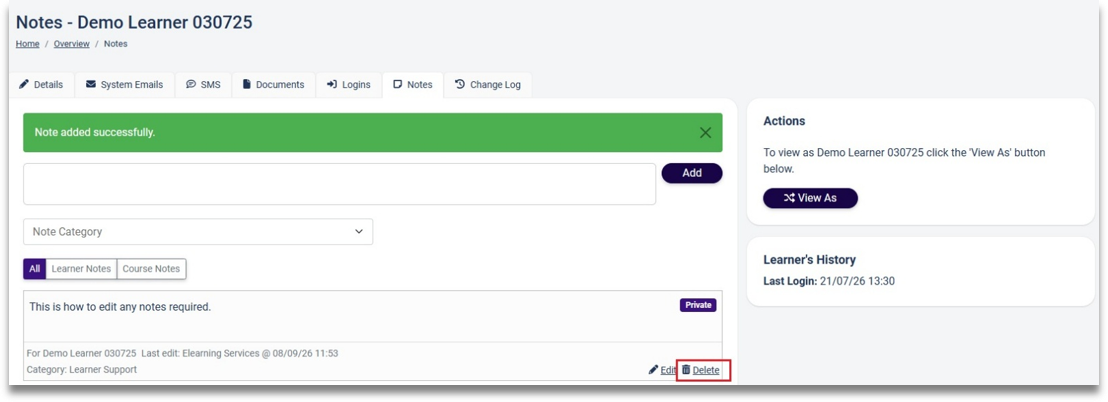
.13.13. Once
the Delete link has been clicked, a pop-up message will appear asking if
you are sure that you want to delete the note. Click on the Confirm button,
if not, then click on the Cancel button.
14. Once a Note has been deleted, then they become disabled but still viewable.
15.
15. 15. If
the Is Feedback for ILP is ticked, this will allow the learner to see
the notes made on their account.
16. Once the ILP has been ticked an entry will be shown on the learners account when they login and start their studies.
11.
11. Once the Save button has been clicked the note will be updated.